If you advertise on X (formerly Twitter), you need the Twitter pixel, now called the X pixel, on your Shopify store. It shows what people do after clicking your ads: which products they view, what they add to their cart, and what they buy. Without it, you can see clicks but not which ads lead to sales, and it works alongside the other social pixels on your store.
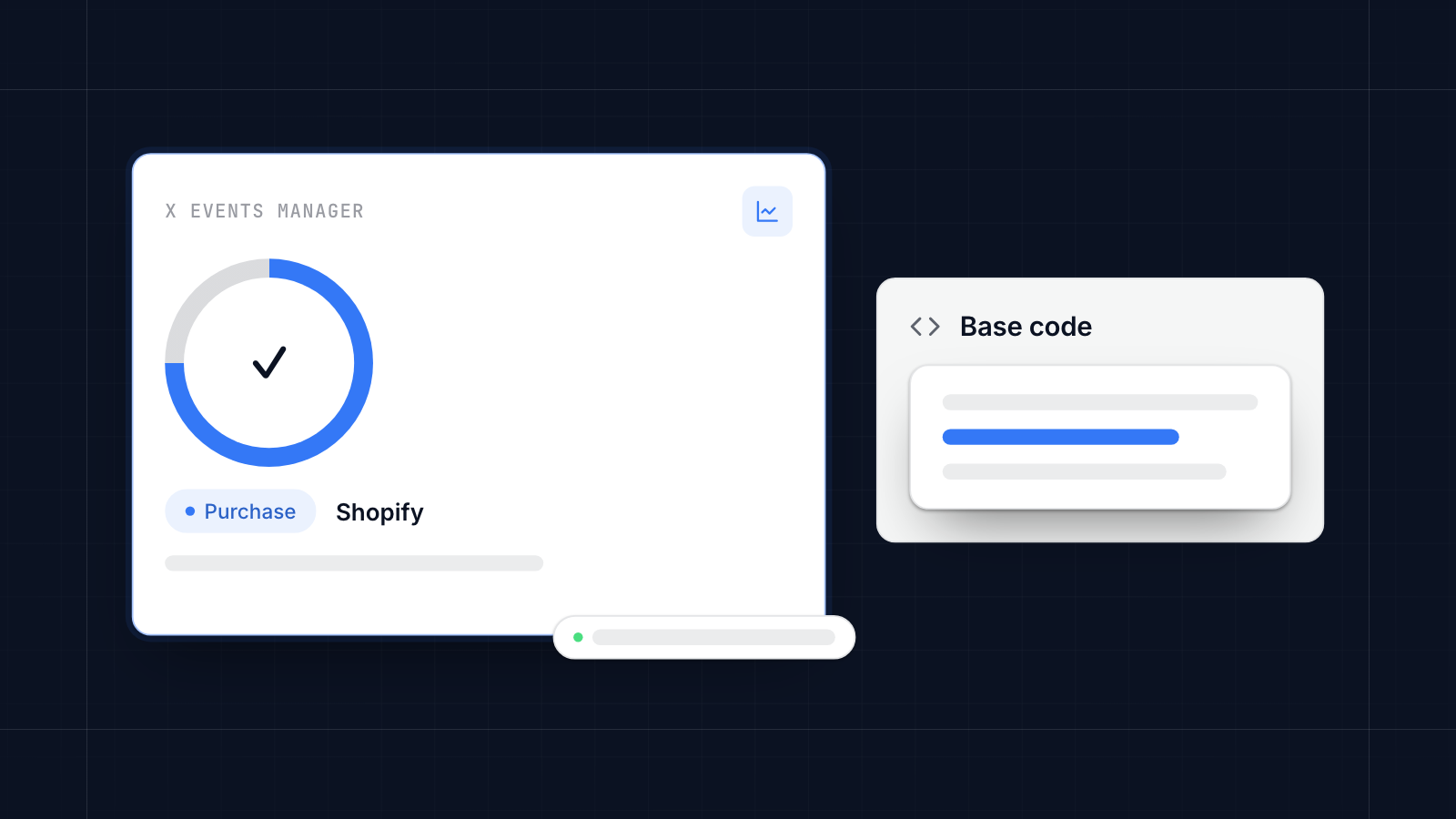
This guide covers how to install the Twitter pixel on your Shopify store, what it does, how to track purchases now that Shopify has retired checkout scripts, how to check it works, and what to do if it does not.
Key takeaways
- The Twitter pixel (X pixel) records what visitors do on your store after clicking your X ads.
- Create it in X Ads under Tools, then Events Manager. It has base code and event code.
- Base code can go in your theme, but checkout and purchase events need a Shopify customer events pixel or an app.
- Shopify no longer runs scripts from the old Additional Scripts box on the order status page.
- Check events in X's Events Manager, and send the order value with purchases.
What a Twitter Pixel Is and Why Shopify Store Owners Should Use It
The Twitter pixel, once called the Universal Website Tag and now the X pixel, is JavaScript code that records what people do on your site after clicking your X ads.
It has two parts. The base code loads on every page, records site visits and lets you build audiences. Event code records specific actions, such as add to cart or purchase, and can send details like the order value.
Say someone clicks your promoted post, browses a few products and leaves. With the pixel installed, you can show them those products again in a later ad. You can also see where people drop out, which products get the most views, and which ads lead to sales, and use that to put your budget where it works.
Things You’ll Need Before Installing Twitter Pixel on Shopify
Have these ready before you start.
- An X Ads account. Sign up at ads.x.com if you do not have one. X may hide the Tools menu until you add a payment method.
- Admin access to your Shopify store. You need permission to edit the theme or install apps, and to add a custom pixel under customer events.
- A plan for what to track. Site visits come with the base code. For ads that lead to sales, you also want purchase events, ideally with the order value.
Step-by-Step Guide to Add Twitter Pixel to Shopify
Step 1: Create a Twitter Pixel (Website Tag) from Twitter Ads Manager
- Log in to ads.x.com.
- Open Tools, then Events Manager.
- Click Add event source and choose to create the X pixel.
- Name it clearly, such as "Shopify store".
X creates the pixel and shows its base code, along with automatic events for site visits and landing page views. Copy the base code, or note the pixel ID if you will use an app.
Step 2: Add the Pixel to Your Shopify Theme
You have two ways to put the base code on your storefront.
With an app (no code). A pixel app that supports X, such as MultiPixels, takes your pixel ID and installs the X pixel across your store, including checkout events, without editing your theme.
By hand in your theme. In your Shopify admin, go to Online Store > Themes, click the three dots next to your live theme and choose Edit code. Open theme.liquid, find the closing </head> tag, paste the base code just above it, and save.
Theme code loads on your storefront pages: the home page, collections, products and cart. It does not run on Shopify's checkout or thank-you page, so it cannot record purchases on its own.
Step 3: Add Event Tracking (Optional But Recommended)
Purchase tracking is what tells X which ads lead to sales, so it is worth the extra step.
In X's Events Manager, create a conversion event and choose its type, such as Purchase or Add to cart. X gives you event code to fire when that action happens. For purchases, send the order value and currency.
Older guides tell you to paste purchase code into Settings > Checkout > Order status page > Additional scripts. Shopify has retired that box: on upgraded checkouts those scripts no longer run. Use one of these instead:
- A pixel app that supports X and sends purchase events from Shopify's checkout for you.
- A custom pixel in Settings > Customer events. Click Add custom pixel, load the X base code inside it, and send X's purchase event when Shopify's
checkout_completedevent fires, passing the order total and currency. Custom pixels run in a sandbox, so test this carefully.
If adding JavaScript is not possible, X also offers a Conversion API that sends events from a server.
Step 4: Verify That the Pixel Works
Check that X receives your events before you rely on them.
- In X's Events Manager, open your pixel. After visits, the base code and your events should show recent activity.
- Visit your store, view a product and add it to your cart.
- Place a test order and check that the purchase event arrives with the right value. Allow time, as events can take a while to show.
You can also check the browser directly. Open your store in Chrome, right-click and choose Inspect, open the Network tab and reload. Requests to X's analytics domains mean the pixel is firing on that page.
Best Practices for Using Twitter Pixel on Shopify
A few habits keep your X data accurate.
- Avoid duplicate tracking. Install the base code once, either in your theme or through an app, never both.
- Use clear event types. Use X's standard types, such as Purchase and Add to cart, rather than vague names like "Conversion1".
- Send values with purchases. Knowing a sale was worth $200 lets X optimize for revenue, not just the number of conversions.
- Check the pixel regularly. Theme changes, checkout changes and new apps can break tracking. Run a test order every month or after big changes.
- Keep your privacy policy current. Tell visitors you use X tracking for analytics and advertising, and respect cookie consent where the law requires it.
Common Issues While Installing Twitter Pixel and How to Fix Them
Most problems come from where the code sits, typos, or checkout.
- Nothing in Events Manager. Check the base code is above the closing
</head>tag intheme.liquid, or that your app is connected to the right pixel ID. Make sure the code was not cut off when you pasted it. - JavaScript errors. Open the browser console. A red error mentioning X or Twitter usually means a typo or missing bracket in the code.
- Purchases not tracked. Theme code and the old Additional Scripts box do not run on Shopify's checkout. Use a customer events pixel or an app for purchases.
- Events counted twice. You probably have the base code in your theme and in an app. Remove one.
- Works on desktop but not mobile. Some themes load different templates on mobile. Test on both.
To test changes safely, duplicate your theme, install the pixel on the copy and preview it before publishing.
Conclusion
Installing the Twitter pixel on your Shopify store shows you what your X traffic does: what people view, what they add to their cart and what they buy. Create the pixel in X's Events Manager, add the base code to your store, track purchases through customer events or an app, and test with a real order.
With the pixel running, you can retarget visitors, compare campaigns by sales and put your X budget into the ads that work.
MultiPixels installs the X pixel alongside Meta, TikTok, Pinterest, Snapchat and GA4 pixels on a Shopify store without editing theme code. Install MultiPixels on your Shopify store to run several tracking pixels at once.
FAQs
Where do I even start with installing Twitter Pixel?
Log in to ads.x.com, open Tools, then Events Manager, and create the X pixel. Then add its base code to your Shopify theme above the closing </head> tag, or give the pixel ID to a pixel app.
Can I still track Twitter purchases with Shopify's Additional Scripts?
No. Shopify has retired the Additional Scripts box on the order status page. Track purchases with a custom pixel in Settings > Customer events, or with an app that supports X.
Is it okay to run several different tracking pixels on the same Shopify store?
Yes. You can run X, TikTok, Meta and other pixels on one store. Install each one once, through a single method.
Does Twitter offer anything like the Facebook Pixel Helper for checking installs?
The reliable check is X's own Events Manager, which shows the activity each event receives. You can also look for X requests in your browser's Network tab.
How do I make sure I’m tracking real conversions, not just page views, with Twitter Pixel?
Create conversion events in X's Events Manager, such as Purchase, and fire them when the action happens, with the order value and currency. On Shopify, do this through customer events or an app.
Could running a Twitter Pixel drag down my store’s page speed?
Very little. The base code loads in the background. Avoid installing it twice, which adds load for no benefit.
Once it’s installed, can I go back and change or delete the Twitter Pixel?
Yes. Remove or replace the code in theme.liquid, delete the custom pixel in Settings > Customer events, or disconnect it in your pixel app.